
Prepare your account and Windows client
Download the Windows installer from the official website and sign in with your own DF-IP account. Decide whether your workflow needs a fixed address or a traffic-billed dynamic product; they use different sections.
This guide follows real Windows client screenshots. The dynamic proxy panel uses English labels; the static resource examples use Chinese labels with English explanations. Menu positions may vary by version.
Dynamic proxies: choose a region and protocol
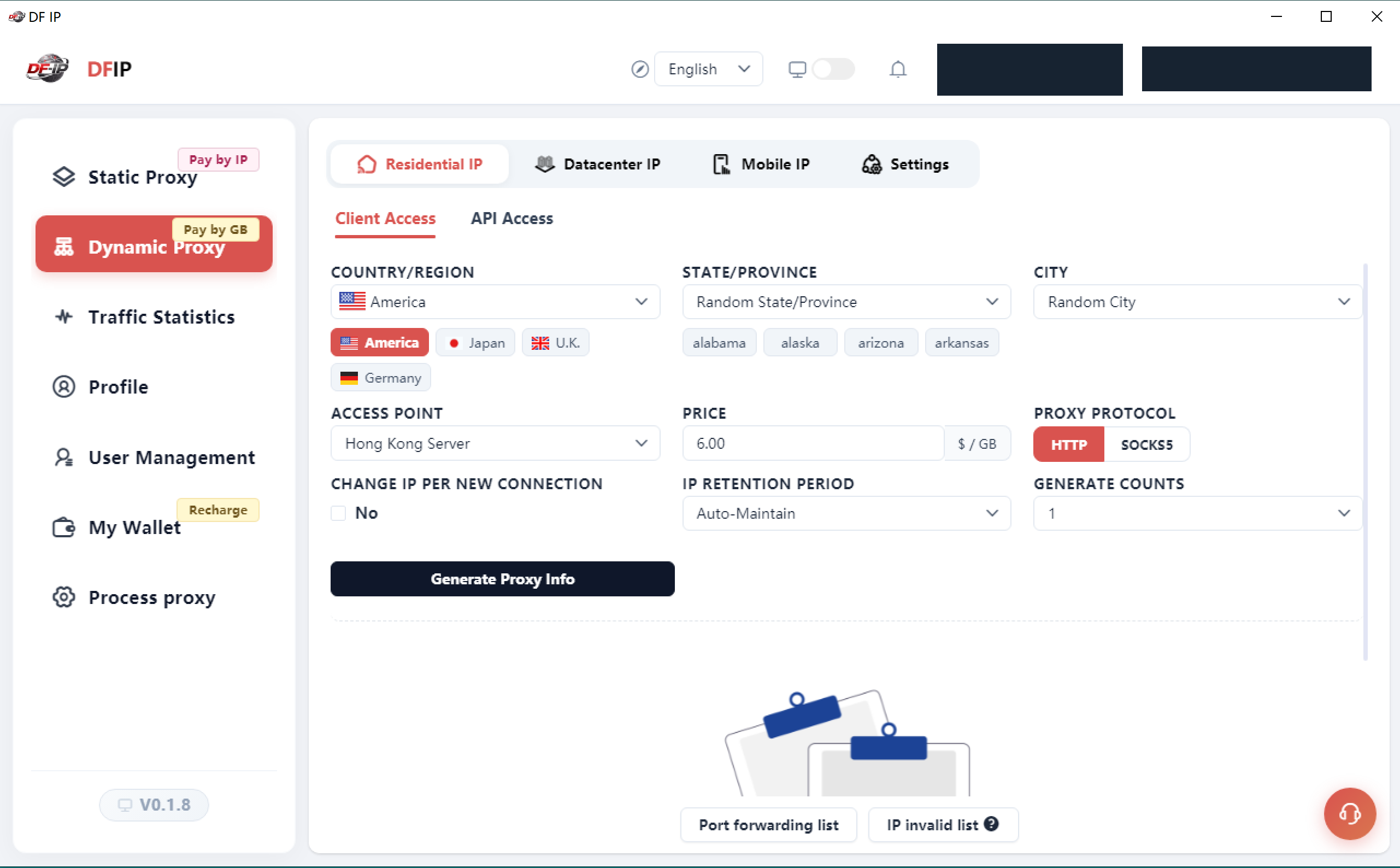
- Open Dynamic Proxy (动态代理), then select Residential IP (动态住宅IP), Datacenter IP (动态机房IP) or Mobile IP (海外手机IP).
- On the residential Client Access (客户端接入) tab, choose Country/Region, then the available state, city and access point options.
- Select HTTP or SOCKS5 to match your tool and check the displayed unit price.
- Review the controls for a new IP on each new connection, IP Retention Period and Generate Counts. “Auto-Maintain” is an interface option, not a guaranteed fixed duration.
- When ready, use Generate Proxy Info (生成代理信息) in your own account and configure your tool with the returned connection details.
Configuring a proxy does not automatically route every application through it. Verify that the intended tool uses the connection.
Static proxies: review resources and order conditions
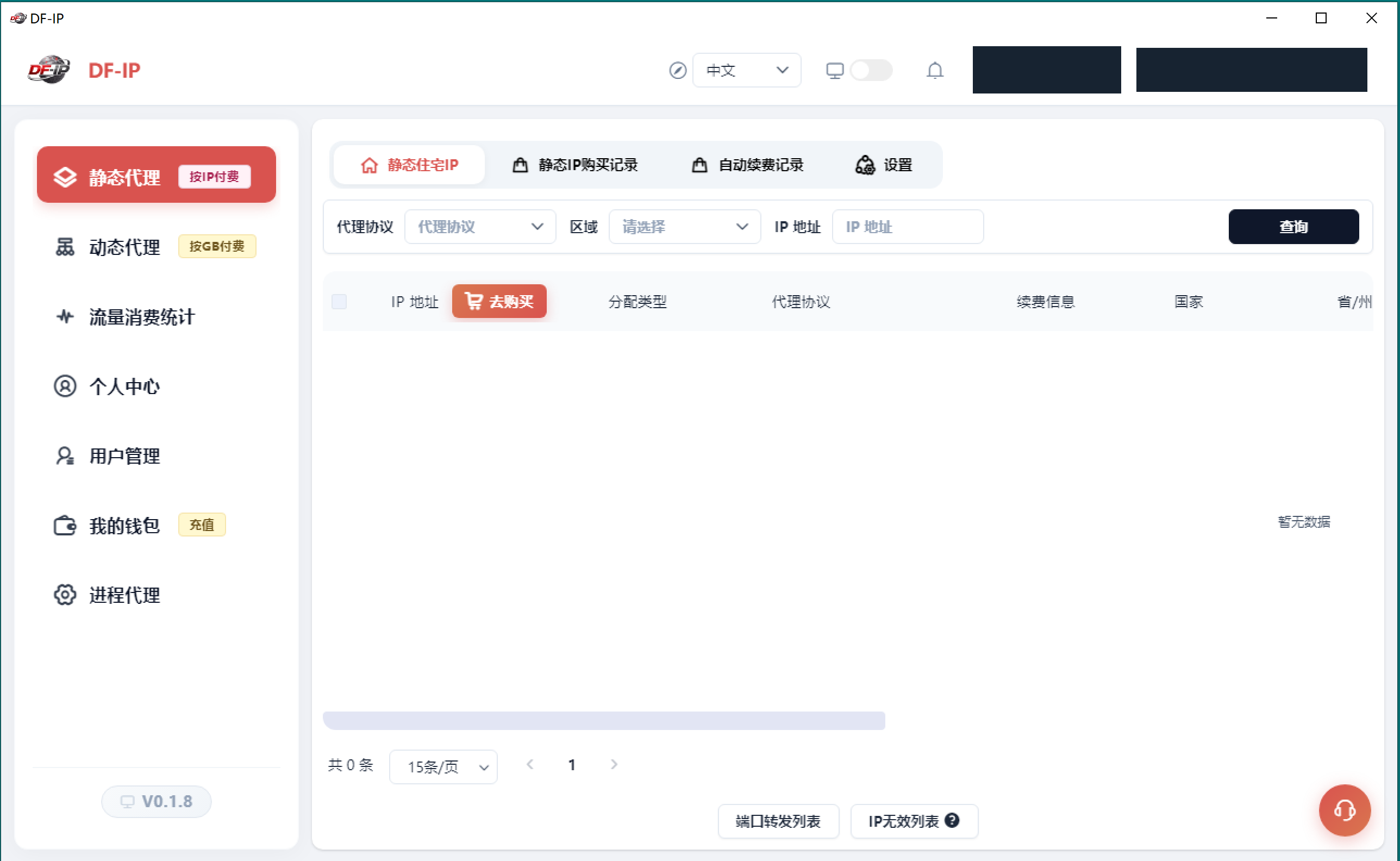
- Open Static Proxy (静态代理), then Static Residential IP (静态住宅IP). Filter the list by protocol, region or IP address.
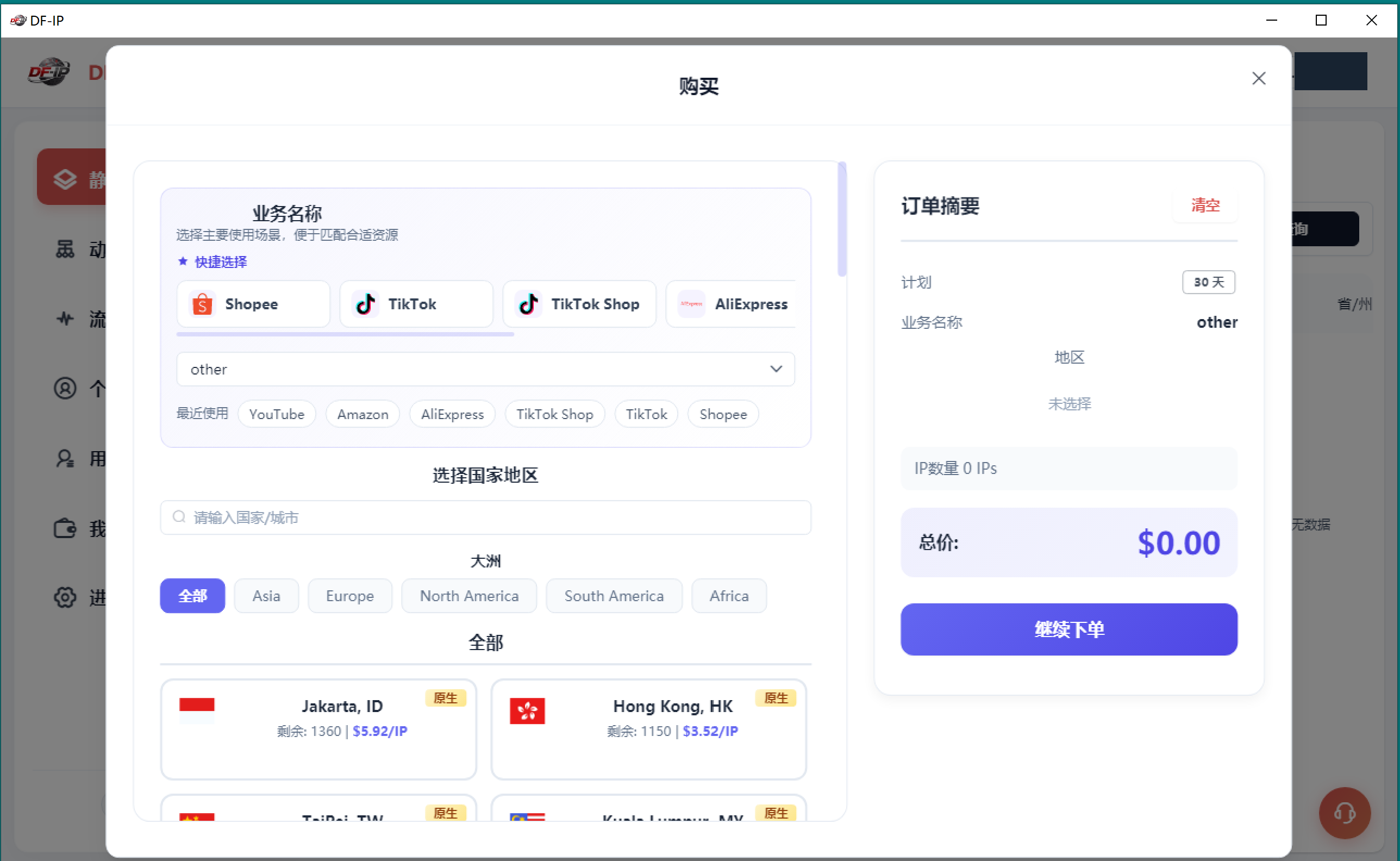
- Use Buy (去购买) when you need new resources. Choose the business label and country or city offered in the dialog.
- Check the plan, selected region, number of IPs and total in the order summary. A $0.00 total with no selected resources is an empty order.
- After completing your own purchase, return to the resource list and use the actual protocol and connection details provided.
- Review purchase and auto-renewal records when managing the service period. A history tab does not mean auto-renewal is enabled.
Platform names in the screenshot are interface options. They do not imply partnership, certification or guaranteed results on those platforms.
Check whether the proxy is in use
Confirm protocol, host, port and authentication, then check the exit. The following Windows curl.exe template uses placeholders; replace the uppercase values with your own configuration.
curl.exe --proxy "http://PROXY_HOST:PROXY_PORT" --proxy-user "PROXY_USERNAME" "https://api.ipify.org?format=json"The request targets ipify’s public IP API and returns the exit address as JSON; the service receives the proxy exit IP. With only a username supplied, curl can prompt for the proxy password instead of leaving it in the command history. SOCKS5 users should use the corresponding protocol supported by their tool. Host, port and authentication must match the generated configuration.
- Check that the request succeeds and that the reported exit matches your configuration.
- Test your actual destination for usable content, regional behavior and multi-step sessions.
- Repeat connections when testing continuity; trigger rotation according to your chosen settings when testing rotating exits.
The screenshots illustrate controls and verification steps. They are not connection-rate, speed or business-success benchmarks.
Troubleshoot by symptom
| Symptom | Check first |
|---|---|
| Authentication failure / HTTP 407 | Credentials, authentication method, extra spaces and resource validity. |
| Connection timeout | Host, port, selected access point, local network and firewall. Record when it happened. |
| Connected, but destination content is wrong | Status code, response content and request frequency. Compare the exit-check page with the actual destination. |
| Unexpected location or IP continuity | Country/city settings, rotation and holding options, and the destination’s location database. |
Send support the client version, time, product type, error text and redacted screenshots. Keep proxy passwords, complete connection strings and account details out of public reports.
Further reading
Proxy selection guide · Official help center · curl documentation · ipify API